
![LLDAP]() LLDAP
LLDAP
Container
This project is a lightweight authentication server that provides an opinionated, simplified LDAP interface for authentication.
Image details
Source details
Configuration
TypeContainerlinuxnitnelave/lldap:stable-debian3890:3890/tcp17170:17170/tcp/data : /portainer/Files/AppData/Config/lldap/dataLLDAP_JWT_SECRET=somesecretjwtLLDAP_LDAP_USER_PASS=someadminpasswordLLDAP_LDAP_BASE_DN=dc=example,dc=comunless-stoppedTemplate by novaspirit
Report issueNotes
Check our Github page: https://github.com/pi-hosted/pi-hosted
Official Webpage: https://github.com/nitnelave/lldap
Official Docker Documentation: https://github.com/nitnelave/lldap
Pre-installation script must be RAN before you install: wget -qO- https://raw.githubusercontent.com/pi-hosted/pi-hosted/master/tools/install_lldap.sh | bash
Standalone Install
Select an install method, to see config/commands for deploying LLDAP
Install on Portainer
Import all app templates into your Portainer instance, for easy 1-click deploys
- Ensure both Docker and Portainer are installed, and up-to-date
- Log into your Portainer web UI
- Under Settings → App Templates, paste the below URL
- Head to Home → App Templates, and the list of apps will show up
- Select LLDAP, fill in any config options, and hit Deploy
Template Import URL
https://raw.githubusercontent.com/Lissy93/portainer-templates/main/templates.json
Show Me

More install options in our documentation, or see nitnelave/lldap for app-specific guidance.
lldap - Light LDAP implementation for authentication
LDAP made easy.
<img
  src="https://github.com/lldap/lldap/actions/workflows/rust.yml/badge.svg"
  alt="Build"/>
<img alt="Discord" src="https://img.shields.io/discord/898492935446876200?label=discord&logo=discord" />
<img
  src="https://img.shields.io/twitter/follow/nitnelave1?style=social"
  alt="Twitter Follow"/>
<img
src="https://img.shields.io/badge/unsafe-forbidden-success.svg"
alt="Unsafe forbidden"/><img alt="Codecov" src="https://img.shields.io/codecov/c/github/lldap/lldap" />
<img src="https://www.buymeacoffee.com/assets/img/custom_images/orange_img.png" alt="Buy Me A Coffee" style="height: 41px !important;width: 174px !important;box-shadow: 0px 3px 2px 0px rgba(190, 190, 190, 0.5) !important;-webkit-box-shadow: 0px 3px 2px 0px rgba(190, 190, 190, 0.5) !important;" >
- Recommended architecture - Known compatible services - General configuration guide - Incompatible services
About
This project is a lightweight authentication server that provides an opinionated, simplified LDAP interface for authentication. It integrates with many backends, from KeyCloak to Authelia to Nextcloud and more!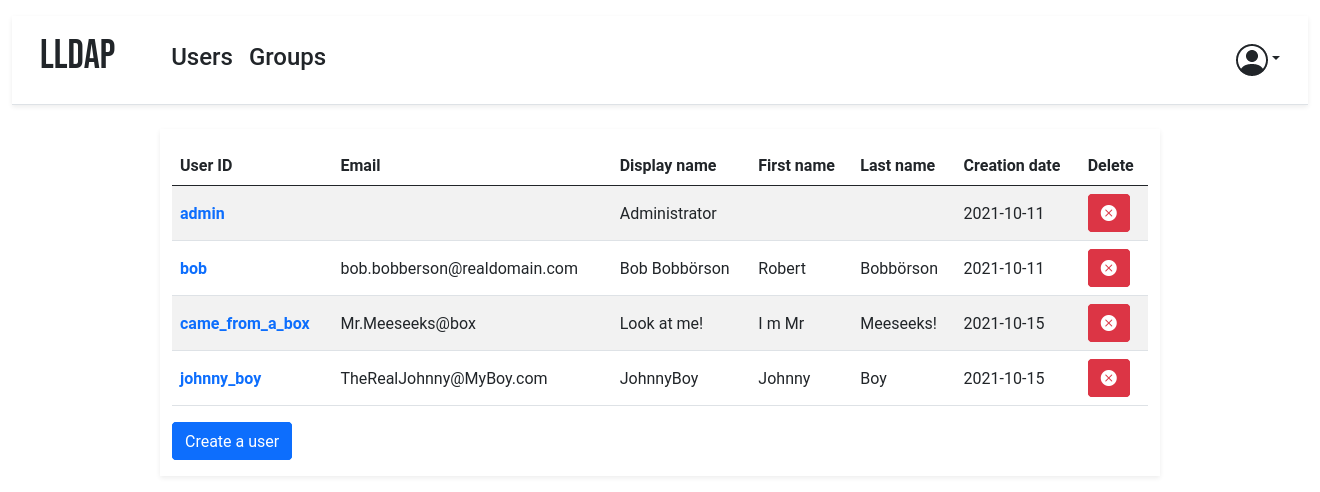
It comes with a frontend that makes user management easy, and allows users to edit their own details or reset their password by email.
The goal is not to provide a full LDAP server; if you're interested in that, check out OpenLDAP. This server is a user management system that is:
- simple to setup (no messing around with
slapd), - simple to manage (friendly web UI),
- low resources,
- opinionated with basic defaults so you don't have to understand the
It mostly targets self-hosting servers, with open-source components like Nextcloud, Airsonic and so on that only support LDAP as a source of external authentication.
For more features (OAuth/OpenID support, reverse proxy, ...) you can install other components (KeyCloak, Authelia, ...) using this server as the source of truth for users, via LDAP.
By default, the data is stored in SQLite, but you can swap the backend with MySQL/MariaDB or PostgreSQL.
Installation
It's possible to install lldap from OCI images (docker/podman), from Kubernetes, TrueNAS, or from a regular distribution package manager (Archlinux, Debian, CentOS, Fedora, OpenSuse, Ubuntu, FreeBSD).Building from source and cross-compiling to a different hardware architecture is also supported.
Usage
The simplest way to use LLDAP is through the web front-end. There you can create users, set passwords, add them to groups and so on. Users can also connect to the web UI and change their information, or request a password reset link (if you configured the SMTP client).You can create and manage custom attributes through the Web UI, or through the community-contributed CLI frontend ( Zepmann/lldap-cli). This is necessary for some service integrations.
The bootstrap.sh script can enforce a list of users/groups/attributes from a given file, reflecting it on the server.
To manage the user, group and membership lifecycle in an infrastructure-as-code scenario you can use the unofficial LLDAP terraform provider in the terraform registry.
LLDAP is also very scriptable, through its GraphQL API. See the Scripting docs for more info.
Recommended architecture
If you are using containers, a sample architecture could look like this:- A reverse proxy (e.g. nginx or Traefik)
- An authentication service (e.g. Authelia, Authentik or KeyCloak) connected to
- The LLDAP service, with the web port exposed to Traefik.
will access it.internet (not recommended) or for an extra layer of security in the
inter-container communication (though it's very much optional).permissions before downgrading the privilege to the given user. However,
you can (should?) use the `*-rootless` version of the images to be able to
start directly as that user, once you got the permissions right. Just don't
forget to change from the `UID/GID` env vars to the `uid` docker-compose
field.- Any other service that needs to connect to LLDAP for authentication (e.g.
Client configuration
Known compatible services
Most services that can use LDAP as an authentication provider should work out of the box. For new services, it's possible that they require a bit of tweaking on LLDAP's side to make things work. In that case, just create an issue with the relevant details (logs of the service, LLDAP logs withverbose=true in
the config).Some specific clients have been tested to work and come with sample configuration files, or guides. See the
example_configs
folder for example configs for integration with specific services.Integration with Linux accounts is possible, through PAM and nslcd. See PAM configuration guide. Integration with Windows (e.g. Samba) is WIP.
General configuration guide
To configure the services that will talk to LLDAP, here are the values:- The LDAP user DN is from the configuration. By default,
cn=admin,ou=people,dc=example,dc=com.- The LDAP password is from the configuration (same as to log in to the web
- The users are all located in
ou=people,+ the base DN, so by default user
bob is at cn=bob,ou=people,dc=example,dc=com.- Similarly, the groups are located in
ou=groups, so the groupfamily
cn=family,ou=groups,dc=example,dc=com.Testing group membership through
memberOf is supported, so you can have a
filter like: (memberOf=cn=admins,ou=groups,dc=example,dc=com).The administrator group for LLDAP is
lldap_admin: anyone in this group has
admin rights in the Web UI. Most LDAP integrations should instead use a user in
the lldap_strict_readonly or lldap_password_manager group, to avoid granting full
administration access to many services. To prevent privilege escalation users in the
lldap_password_manager group are not allowed to change passwords of admins in the
lldap_admin group.Incompatible services
Though we try to be maximally compatible, not every feature is supported; LLDAP is not a fully-featured LDAP server, intentionally so.LDAP browsing tools are generally not supported, though they could be. If you need to use one but it behaves weirdly, please file a bug.
Some services use features that are not implemented, or require specific attributes. You can try to create those attributes (see custom attributes in the Usage section).
Finally, some services require password hashes so they can validate themselves the user's password without contacting LLDAP. This is not and will not be supported, it's incompatible with our password hashing scheme (a zero-knowledge proof). Furthermore, it's generally not recommended in terms of security, since it duplicates the places from which a password hash could leak.
In that category, the most prominent is Synology. It is, to date, the only service that seems definitely incompatible with LLDAP.
Frequently Asked Questions
- I can't login
- Discord Integration
- Migrating from SQLite
- How does lldap compare with OpenLDAP? With FreeIPA? With Kanidm?
- Does lldap support vhosts?
- Does lldap provide commercial support contracts?
- Can I make a donation to fund development?
- Is lldap sustainable? Can we depend on it for our infrastructure?
Contributions
Contributions are welcome! Just fork and open a PR. Or just file a bug.We don't have a code of conduct, just be respectful and remember that it's just normal people doing this for free on their free time.
Make sure that you run
cargo fmt from the root before creating the PR. And if
you change the GraphQL interface, you'll need to regenerate the schema by
running ./export_schema.sh.Join our Discord server if you have any questions!
Serve LLDAP on your own domain behind Caddy, Nginx or Traefik. Fill in your domain and copy the result. It's a starting point, some apps need their own base URL or extra headers set too.
Proxying lldap.example.com to http://LLDAP:3890
Add this to your Caddyfile
lldap.example.com {
	reverse_proxy http://LLDAP:3890
}Check the logs first
Nine times out of ten the logs tell you exactly what went wrong.
- In Portainer, go to Containers, click the container, then Logs. Or run
docker logs LLDAP - Exit codes help too:
137means killed, usually out of memory.126or127means the command inside the image is broken.
Port already in use
If deployment fails with "Bind for 0.0.0.0:3890 failed: port is already allocated", something else on your server is using that port.
- Find what's using it:
sudo ss -tlnp | grep :3890 - Stop the other service, or pick a different host port. In
3890:3890only the left number is yours to change, the right one belongs to the app.
Running but the page won't load
The container is up but nothing appears in your browser.
- Use your server's real IP:
http://your-server-ip:3890. The 0.0.0.0 link Portainer shows isn't a real address. - Give it a minute after first deploy, LLDAP can take a while to initialise.
- Make sure your firewall allows the port, e.g.
sudo ufw allow 3890
Permission denied on volumes
If the logs show "permission denied", the app can't write to its data folder on the host.
- Fix the ownership:
sudo chown -R 1000:1000 /portainer/Files/AppData/Config/lldap/data
Image won't pull
Test the pull directly on the host: docker pull nitnelave/lldap:stable-debian
- "manifest unknown" means the tag no longer exists.
- "toomanyrequests" is the Docker Hub rate limit. Log in with
docker loginto raise it. - "no space left on device" means a full disk. Reclaim space with
docker system prune
"exec format error"
This means the image was built for a different CPU architecture than your server.
- This image supports:
amd64, arm64, arm/v7 - Check yours with
uname -m: x86_64 is amd64, aarch64 is arm64. Raspberry Pi and other ARM boards are the usual culprits.
Container keeps restarting
The unless-stopped restart policy relaunches the app after every crash, so the real error can scroll past.
- Check the logs right after a restart, the last few lines before it died are the useful ones.
- Get the exit code with
docker inspect LLDAP --format '{{.State.ExitCode}}' - Still stuck? Redeploy once with the restart policy set to
noso the failure stays visible.
Raise an issue
Found something which isn't working as it should? Here's how to report it.
- Bug within the app: Open an issue on nitnelave/lldap
- Template not working: Open an issue on novaspirit/pi-hosted
- This website not working: Open an issue on lissy93/portainer-templates
A single container
LLDAP runs as one container, the simplest kind of app here. Just the one image to pull and nothing else wired up alongside it.
The app image
An image is the app packed up ready to go, everything LLDAP needs bundled into one download. This template pulls nitnelave/lldap:stable-debian, which Docker fetches once (about 51 MB) and then starts your own copy from.
Where the image comes from
Docker pulls its images from registries, public libraries of ready-built apps. LLDAP's comes from Docker Hub, published by nitnelave.
Version tags
The bit after the colon in the image name is the version tag. This one pins stable-debian, so every redeploy gives you that exact build until you bump it yourself.
Which machines it runs on
Every image is built for particular CPU types. This one ships for amd64, arm64, arm/v7, so it runs on both regular x86 servers and ARM boards like a Raspberry Pi.
Ports
A port is the door the app answers on. A mapping like 3890:3890 means it's reachable on port 3890 of your server, where the left number is yours to change and the right one belongs to the app. It opens:
3890:389017170:17170
Volumes
A volume is where LLDAP keeps its files so they survive an update or a restart. Without one, anything it saves would sit inside the container and vanish the moment it's recreated. This template mounts:
/datafrom/portainer/Files/AppData/Config/lldap/dataon the host
Environment variables
Environment variables are the settings you hand over when you deploy, things like a password or a timezone. LLDAP takes 3 of them, all with defaults you can leave alone or tweak:
LLDAP_JWT_SECRET, defaults tosomesecretjwtLLDAP_LDAP_USER_PASS, defaults tosomeadminpasswordLLDAP_LDAP_BASE_DN, defaults todc=example,dc=com
Restart policy
The restart policy here is unless-stopped, so Docker restarts LLDAP after a crash or reboot, but leaves it off when you stop it on purpose. You can change this on the deploy screen. The choices are no (never restart), on-failure (only after a crash), unless-stopped (restart unless you stop it), and always (bring it back no matter what).
Networking
Nothing custom is set, so LLDAP sits on Docker's default bridge network: its own private space that reaches the outside world only through the ports it publishes.
Container name
Once it's deployed, Portainer names the container LLDAP. That's what you'll spot in the containers list and use in commands like docker logs LLDAP.
Platform
The platform is linux, the kind of system the container is built to run on. Docker and Portainer handle this on a normal Linux server.
Open source license
LLDAP is open source, released under the GPL-3.0 license. In plain terms the code is out in the open, so you're free to run it and change it to fit what you need.
Portainer app templates
Zooming out, this whole page comes from a Portainer app template: a short recipe telling Portainer how to set LLDAP up. Add the template list to Portainer once, then deploying LLDAP is a click rather than a wall of config.