
![AI Marketplace Monitor]() AI Marketplace Monitor
Container
Watch Facebook Marketplace for the items you want, rate each new listing with AI, and get notified of good deals. Source: https://github.com/BoPeng/ai-marketplace-monitor
Image details
Source details
Configuration
TypeContainerlinuxghcr.io/bopeng/ai-marketplace-monitor:latest8467:8467/tcp/dataFACEBOOK_USERNAME=''FACEBOOK_PASSWORD=''UNITYSVC_API_KEY=svcpass_XXXXXTZ=UTCAIMM_WEBUI_AUTH=autoAIMM_WEBUI_USERNAME=adminAIMM_WEBUI_PASSWORD=''unless-stoppedTemplate by BoPeng
Report issueNotes
/data. See the Docker installation guide.Standalone Install
Select an install method, to see config/commands for deploying AI Marketplace Monitor
Install on Portainer
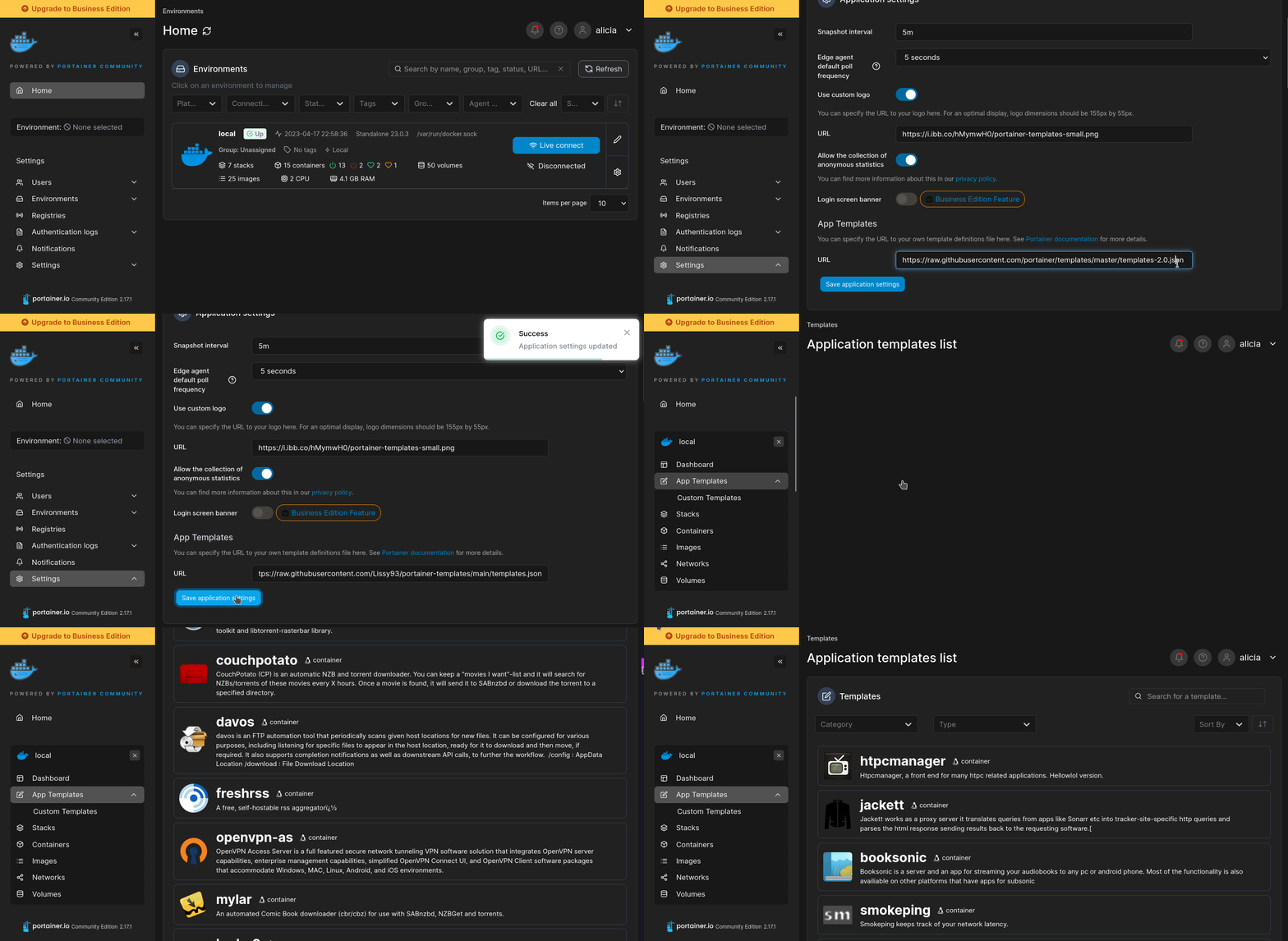
Import all app templates into your Portainer instance, for easy 1-click deploys
- Ensure both Docker and Portainer are installed, and up-to-date
- Log into your Portainer web UI
- Under Settings → App Templates, paste the below URL
- Head to Home → App Templates, and the list of apps will show up
- Select AI Marketplace Monitor, fill in any config options, and hit Deploy
Template Import URL
https://raw.githubusercontent.com/Lissy93/portainer-templates/main/templates.json
Show Me
More install options in our documentation, or see BoPeng/ai-marketplace-monitor for app-specific guidance.




An intelligent tool that monitors Facebook Marketplace listings using AI to help you find the best deals. Get instant notifications when items matching your criteria are posted, with AI-powered analysis of each listing.
📚 Read the Full Documentation
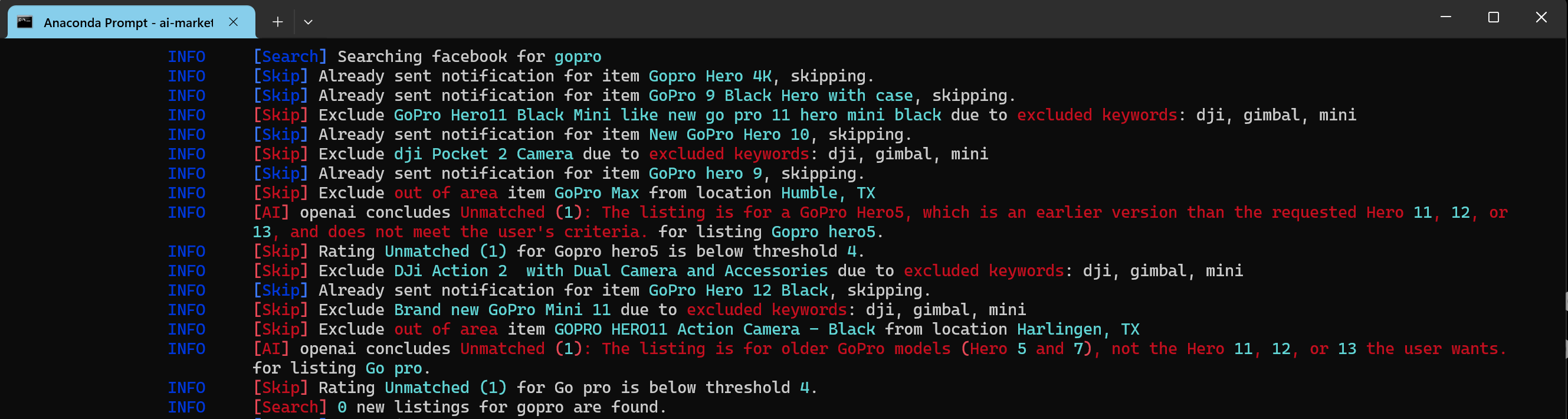
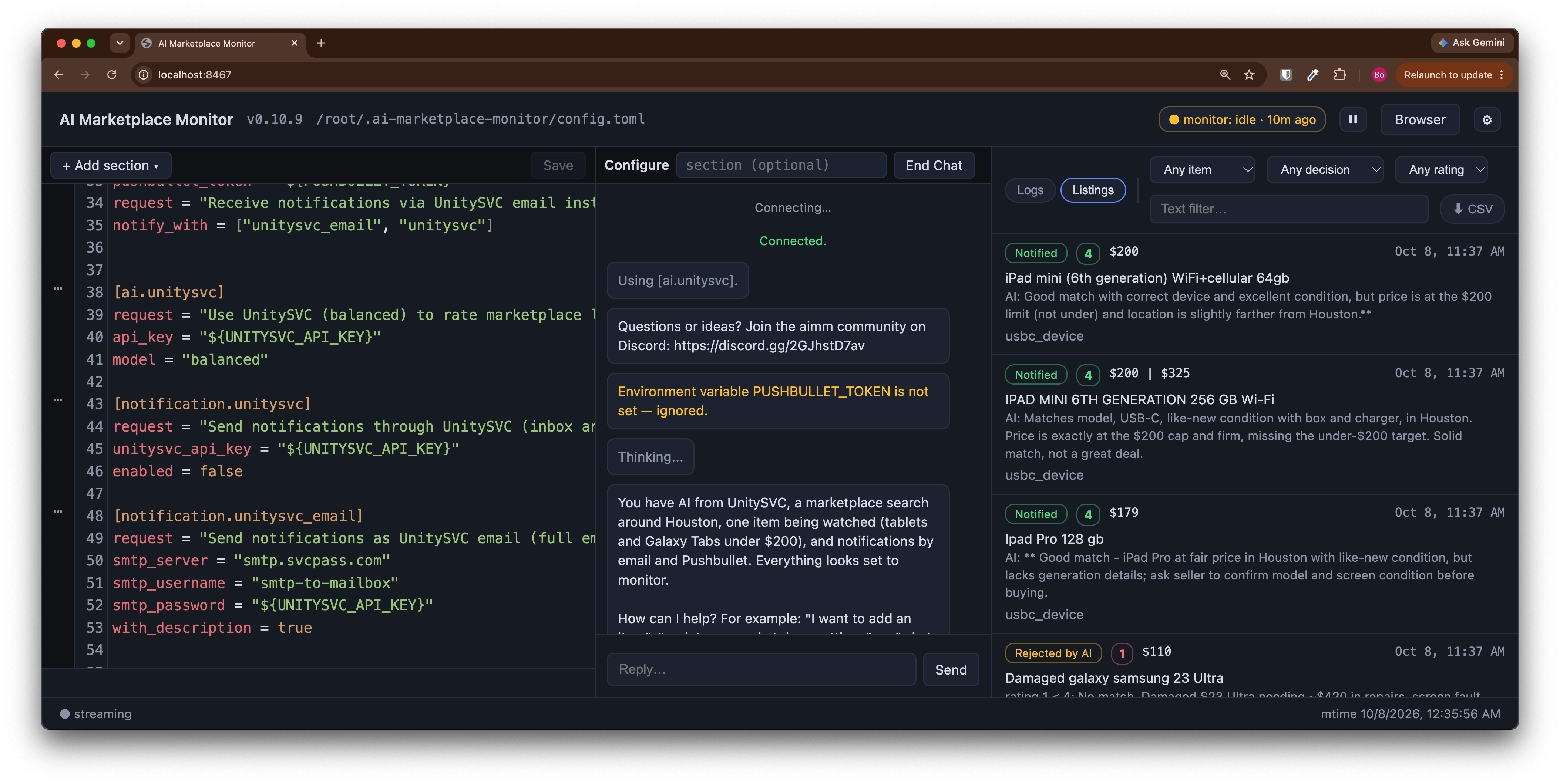
AIMM runs in a terminal or in its web UI, which starts with it:
Command line: each search, the listings it skips or excludes, and the AI's verdict on each new listing
Web UI: the config editor, the Assistant chat that sets AIMM up for you and answers questions about what it found, and the listings AIMM evaluated with their AI ratings; it also shows the live log and AIMM's browser when Facebook asks for a check (see Web UI)
Example notification from PushBullet:
Found 1 new gopro from facebook
[Great deal (5)] Go Pro hero 12
$180, Houston, TX
https://facebook.com/marketplace/item/1234567890
AI: Great deal; A well-priced, well-maintained camera meets all search criteria, with extra battery and charger. Seller is reputable, rated 5.0 out of 5 by 37 buyers.
What's New
- Runs on your NAS or home server: install AIMM on Unraid, TrueNAS SCALE, CasaOS, ZimaOS, Cosmos or Portainer from its template, or on a Synology or QNAP NAS with Docker, so it searches around the clock. See Run with Docker.
- Seller reputation: AIMM evaluates each seller, from how long they have been on Facebook, their listings and sales, their rating and what buyers say in reviews, and the AI identifies unreliable and malicious sellers automatically: new accounts, dealers posing as private sellers, bait listings, no-shows. Its rating and notifications tell you why. See Seller information.
- Guided Facebook login: AIMM types your Facebook username and password, then waits for you to complete any CAPTCHA or security code before it searches. In Docker, the web UI shows a banner with an Open browser button. See Run the Monitor.
- AI-assisted configuration:
aimm configureguides users through AI services, marketplace searches, items, notifications, regions, translations, and monitor settings without hand-writing TOML. - UnitySVC for AI and notifications: Use one UnitySVC key for almost arbitrary AI models, email and 100+ notification channels. See What you need.
- Built-in Web UI: Edit config, add AI backends, and monitor live logs from your browser — starts automatically with the monitor. See Web UI documentation.
Table of Contents:
- What's New
- ✨ Key Features
- 🚀 Quick Start
- 💡 Example Usage
- 📚 Documentation
- 🤝 Contributing
- 📜 License
- 💬 Support
- 🙏 Credits
✨ Key Features
🔍 Smart Search- Search multiple products using keywords
- Filter by price and location
- Exclude irrelevant results and spammers
- Support for different Facebook Marketplace layouts
🤖 AI-Powered
- Intelligent listing evaluation
- Smart recommendations
- AI-assisted configuration editing with
aimm configureand the Web UI Assistant - Almost arbitrary AI models through UnitySVC, plus OpenAI, Anthropic, DeepSeek, Gemini, and Ollama
- Self-hosted model option through Ollama
📱 Notifications
- 100+ notification channels through UnitySVC
- PushBullet, PushOver, Telegram, and Ntfy notifications
- HTML email notifications with images
- Customizable notification levels
- Repeated notification options
- Optional daily digest (
digest_at) of searches, matches and rejected listings: the full digest by email, or a short summary on a phone channel
🖥️ Web UI
- Built-in config editor with TOML syntax highlighting
- Live log streaming and filtering
- A Listings table of every listing AIMM evaluated, with its AI rating and why it was notified, rejected, or excluded
- Add, edit, and delete config sections from your browser
- No password required on localhost
🌎 Location Support
- Multi-city search
- Pre-defined regions (USA, Canada, etc.)
- Customizable search radius
- Flexible seller location filtering
🚀 Quick Start
⚠️ Legal Notice: Facebook's terms prohibit automated data collection without authorization. This tool was developed for personal, hobbyist use only. You are solely responsible for ensuring compliance with platform terms and applicable laws.
What you need
AIMM searches Facebook Marketplace, which needs a Facebook account for AIMM to log in with (FACEBOOK_USERNAME and FACEBOOK_PASSWORD) and a browser that AIMM controls (installed with playwright install). To rate listings and to tell you about them, it uses three external services: an AI, email, and phone or chat alerts. You can set them up in one of two ways:1. With UnitySVC (recommended). One API key (
UNITYSVC_API_KEY) covers all three: AI models paid per use, free email to your UnitySVC address or through your own mail server, and alerts to Discord, Slack, Telegram, Pushover, SMS and 100+ other channels. Accounts you already have, such as an OpenAI key or a Telegram bot, are saved once in UnitySVC instead of in AIMM's configuration. UnitySVC is run by the maintainer of AIMM; Why UnitySVC explains how it works.flowchart LR
aimm["AIMM<br/>one key: UNITYSVC_API_KEY"]
subgraph unitysvc["UnitySVC"]
smtp["SMTP gateway"]
api["API gateway"]
end
aimm -- "email" --> smtp
aimm -- "notification (msg)" --> api
aimm -- "AI request" --> api
smtp -- "smtp-to-mailbox" --> mailbox["Your UnitySVC<br/>email address"]
smtp -- "smtp-relay (BYOK)" --> ownsmtp["Your SMTP server<br/>Gmail, Outlook, ..."]
api -- "msg-to-discord, ... (BYOK)" --> chat["Your Discord, Slack,<br/>Telegram, Pushover, ..."]
api -- "llm pool" --> llm["Vision models, chosen<br/>by tier: fast, balanced, ..."]
api -- "AI (BYOK)" --> aiown["Your OpenAI, Anthropic,<br/>Gemini, ... account"]2. Without UnitySVC. Set up each service with its own provider: OpenAI, Anthropic, Gemini, DeepSeek or a local Ollama for AI; Gmail or any other mail server for email; Telegram, Pushbullet, Pushover or ntfy for alerts. Each needs its own account, with its key or password in your configuration or environment.
- The default configuration uses UnitySVC for all three. Its phone alerts reach only your inbox on the UnitySVC website until you choose a destination of your own in UnitySVC, such as your Discord, Slack, Telegram or Pushover.
- Mix and match. Each service is set up on its own, so you can, for example, use UnitySVC email with your own OpenAI key.
aimm configuresets up any of these for you.
Installation
Requires Python 3.10 or higher. Check your version withpython --version. If your system default is older, usepip3.10(orpip3.11,pip3.12, etc.) instead ofpip, or create a virtual environment with the correct version.
pip install ai-marketplace-monitor
playwright install
Configure with AI
Most users do not need to write a configuration file by hand. Set one AI provider key, then letaimm configure create or update ~/.ai-marketplace-monitor/config.toml
through a guided conversation:export OPENAI_API_KEY='your_openai_key'
# or: export ANTHROPIC_API_KEY='your_anthropic_key'
# or: export UNITYSVC_API_KEY='your_unitysvc_key'
# aimm searches only while logged in to Facebook
export FACEBOOK_USERNAME='you@example.com'
export FACEBOOK_PASSWORD='your_facebook_password'
aimm configureAIMM reads your Facebook username and password from
FACEBOOK_USERNAME and
FACEBOOK_PASSWORD (or from username and password in
[marketplace.facebook]). They are required: AIMM does not search without
logging in.aimm configure checks or creates the AI setup first, then asks what you want to
configure: marketplace searches, items to watch, notifications, regions,
translations, or monitor settings. It explains proposed changes and asks before
writing them.You can also jump directly to one section:
aimm configure ai
aimm configure marketplace
aimm configure item.gopro
Here is a real session that adds an item.
aimm configure starts with a summary of what is
already configured and what is still missing, drafts the item from one plain-language request,
and shows the change before writing it:$ aimm configure
Using [ai.anthropic].
Thinking...
AIMM: Hi! You have two AI services (Anthropic, and UnitySVC with qwen3.7-flash), a Facebook
Marketplace search around Houston, and notifications to you (user "me") via UnitySVC. The one thing
still missing is an item to search for, so aimm can't monitor anything yet. Want to start by adding
one?
You can say things like "I want to add an item" (e.g. "watch for a GoPro under $200"), "update my
marketplace settings", or "what can I configure?".
You: I want to watch for an action camera: a GoPro Hero 9 or newer, a DJI Osmo Action 3 or newer,
or an Insta360 X3, X4 or Ace Pro. Used is fine if it works, with no water damage and no scratched
lens. Preferably under $250. Same Houston area, check every 30 minutes.
Thinking...
Thinking...
Thinking...
Thinking...
New item "action_camera": GoPro Hero 9+, DJI Osmo Action 3+, Insta360 X3/X4/Ace Pro; used OK if
working, no water damage or scratched lens; max $250; checked every 30 minutes; Houston area (20
miles) from your existing marketplace.
[item.action_camera]
request = "Watch for an action camera (GoPro Hero 9+, DJI Osmo Action 3+, Insta360 X3/X4/Ace Pro),
used OK if working, no water damage or scratched lens, preferably under $250, in the Houston area,
checked every 30 minutes."
search_phrases = ["gopro hero", "dji osmo action", "insta360 x3", "insta360 x4", "insta360 ace pro",
"action camera"]
description = "Action camera: GoPro Hero 9 or newer, DJI Osmo Action 3 or newer, or Insta360 X3,
X4 or Ace Pro. Used is fine if it works. No water damage and no scratched lens."
keywords = ["gopro", "go pro", "dji", "osmo", "insta360"]
max_price = "250"
search_interval = "30m"
(a diff of ~/.ai-marketplace-monitor/config.toml follows)
Write these changes? [Y/n] y
Saved ~/.ai-marketplace-monitor/config.toml.
Thinking...
AIMM: I've saved the action camera item. It covers GoPro Hero 9+, DJI Osmo Action 3+ and Insta360
X3/X4/Ace Pro. It accepts used cameras that work, with no water damage or scratched lens. The price
limit is $250, and it's checked every 30 minutes in your Houston area (20 miles). I set the price as
a hard limit. I can't make it a soft preference.
Is there anything else you'd like to change?
You: No, that's all. Thanks.
Thinking...
AIMM: All done. Enjoy the hunt!
Your configuration is saved, but nothing is searching yet: run `aimm run` to start monitoring (a
monitor that is already running picks up the change on its own).Run the Monitor
aimmWhat happens next:
- AIMM opens a browser window, goes to Facebook, and types your username and
password.- If Facebook asks for a CAPTCHA or a security code, complete it in that
window. AIMM waits as long as it takes (the web UI shows a "waiting for
Facebook login" banner) and reminds you in the log every few minutes.
If Facebook keeps asking for CAPTCHAs, turn on two-factor authentication
for your Facebook account, so that you confirm the login on your phone
instead (see [Troubleshooting](https://github.com/BoPeng/ai-marketplace-monitor/blob/HEAD/docs/troubleshooting.rst)).- Once you are logged in, AIMM searches Facebook Marketplace and notifies you
of matching items. If Facebook logs it out later, it waits for you the same
way.- AIMM saves the Facebook session, so the next time it starts it is still
logged in, without a new login, CAPTCHA or security code.aimm is the same as aimm run; ai-marketplace-monitor provides the same interface.You never need to restart AIMM to change your configuration. Save the config file, in the web UI, with
aimm configure or in any editor, and the running monitor picks up the change on its own: after the current search it reloads the configuration and searches all items with it. The ⏸ button in the web UI stops the monitor only when you need its browser to yourself, and ▶ starts it again.AIMM always shows its browser, because Facebook may ask you to complete a CAPTCHA or a security code. To run AIMM on a server, a NAS or another machine without a screen, use the Docker image: it has a virtual display, and the web UI shows you its browser when you need it.
Run with Docker
A prebuilt image on GitHub Container Registry runs AIMM on a server, a NAS or macOS. It has a virtual display, and the web UI shows you its browser when Facebook asks for a CAPTCHA or a security code.docker run -d --name aimm \
-p 8467:8467 \
-v "$HOME/.ai-marketplace-monitor:/data" \
-e FACEBOOK_USERNAME -e FACEBOOK_PASSWORD \
-e UNITYSVC_API_KEY \
--restart unless-stopped \
ghcr.io/bopeng/ai-marketplace-monitor:latestUNITYSVC_API_KEY needs a UnitySVC account and an API key you create there; see What you need.Then open http://localhost:8467 and sign in with your Facebook username and password, the values of
FACEBOOK_USERNAME and FACEBOOK_PASSWORD. If Facebook asks for a check, click Open browser in the banner of the web UI and complete it there; searches start once you are logged in.The Docker installation guide (source) covers the ways to run the image, from the container engine itself to NAS and home-server systems:
- Docker, the container engine:
docker run, as above, starts the container from the command line. - Docker Compose, Docker's tool for declarative configuration: the container is described in
docker-compose.yml, with its settings in a.envfile (both indocker-compose/), anddocker compose up -dcreates it the same way every time. - Portainer, a web interface for managing Docker containers and Compose stacks: point its App Templates at a community template list that includes AIMM, and deploy AIMM from there.
- Synology and QNAP NAS run containers in their own apps, Container Manager and Container Station, so AIMM runs on your NAS around the clock with the same Compose file.
- Unraid: add AIMM's template, then create the container from it under Docker › Add Container.
- TrueNAS SCALE: add AIMM as a custom app with Install via YAML and our configuration file,
deploy/truenas/install-via-yaml.yaml. - CasaOS and ZimaOS: import AIMM's template with Custom Install.
- Cosmos: import AIMM's template under ServApps.
The guide also covers running behind a reverse proxy, updates, and running AIMM commands in the container.
💡 Example Usage
These are examples of configuration sections thataimm configure can create or
update for you. Advanced users can still edit the TOML file directly.Find GoPro cameras under $300:
[item.gopro]
search_phrases = 'Go Pro Hero'
keywords = "('Go Pro' OR gopro) AND (11 OR 12 OR 13)"
min_price = 100
max_price = 300
Search nationwide with shipping:
[item.rare_item]
search_phrases = 'vintage collectible'
search_region = 'usa'
delivery_method = 'shipping'
seller_locations = []
AI-powered filtering:
[ai.openai]
api_key = 'your_openai_key'

[item.camera]
description = '''High-quality DSLR camera in good condition.
Exclude listings with water damage or missing parts.'''
rating = 5  # Only notify for great deals (default: 4+)
Alerts on your phone and by email, plus a daily digest:
[user.me]
email = 'me@gmail.com'
notify_with = ['notification.unitysvc', 'email.gmail']

[notification.unitysvc]
unitysvc_api_key = '${UNITYSVC_API_KEY}'

[email.gmail]
smtp_username = 'me@gmail.com'  # the password is GMAIL_SMTP_PASSWORD
# every morning at 8: a summary of everything aimm did in the last 24 hours
digest_at = '08:00'
📚 Documentation
For detailed information on setup and advanced features, see the comprehensive documentation:- 📖 Full Documentation - Complete guide and reference
- 🚀 Quick Start Guide - Get up and running in 10 minutes
- 🔍 Features Overview - Complete feature list
- 📱 Usage Guide - Command-line options and tips
- 🔧 Configuration Guide - Notifications, AI prompts, multi-location search
- ⚙️ Configuration Reference - Complete configuration reference
- 🖥️ Web UI Guide - Built-in web interface for config editing and monitoring
Key Topics Covered in Documentation
Notification Setup:- UnitySVC notification catalog with 100+ channels, plus Email (SMTP), PushBullet, PushOver, Telegram, and Ntfy
- Multi-user configurations
- HTML email templates
AI Integration:
- AI-assisted configuration editing with
aimm configure - UnitySVC access to almost arbitrary AI models, plus OpenAI, DeepSeek, Gemini, Anthropic, and Ollama setup
- Custom prompt configuration
- Rating thresholds and filtering
Advanced Search:
- Multi-city and region search
- Currency conversion
- Keyword filtering with Boolean logic
- Searching through a proxy
Configuration:
- TOML file structure
- Environment variables
- Multiple marketplace support
- Language/translation support
🤝 Contributing
Contributions are welcome! Here are some ways you can contribute:- 🐛 Report bugs and issues
- 💡 Suggest new features
- 🔧 Submit pull requests
- 📚 Improve documentation
- 🏪 Add support for new marketplaces
- 🌍 Add support for new regions and languages
- 🤖 Add support for new AI providers
- 📱 Add new notification methods
Please read our Contributing Guidelines before submitting a Pull Request.
📜 License
This project is licensed under the Affero General Public License (AGPL). For the full terms and conditions, please refer to the official GNU AGPL v3.💬 Support
We provide multiple ways to access support and contribute to AI Marketplace Monitor:- 💬 Discord - Ask questions, share your searches, and hear about new releases (no GitHub account needed)
- 📖 Documentation - Comprehensive guides and instructions
- 🤝 Discussions - Community support and ideas
- 🐛 Issues - Bug reports and feature requests
- 💖 Become a sponsor - Support development
- 💰 Donate via PayPal - Alternative donation method
Important Note: Due to time constraints, priority support is provided to sponsors and donors. For general questions, please join us on Discord or use GitHub Discussions; report bugs as GitHub Issues.
🙏 Credits
- Some of the code was copied from facebook-marketplace-scraper.
- Region definitions were copied from facebook-marketplace-nationwide, which is released under an MIT license as of Jan 2025.
- This package was created with Cookiecutter and the cookiecutter-modern-pypackage project template.
Serve AI Marketplace Monitor on your own domain behind Caddy, Nginx or Traefik. Fill in your domain and copy the result. It's a starting point, some apps need their own base URL or extra headers set too.
Proxying ai-marketplace-monitor.example.com to http://ai-marketplace-monitor:8467
Add this to your Caddyfile
ai-marketplace-monitor.example.com {
	reverse_proxy http://ai-marketplace-monitor:8467
}Check the logs first
Nine times out of ten the logs tell you exactly what went wrong.
- In Portainer, go to Containers, click the container, then Logs. Or run
docker logs ai-marketplace-monitor - Exit codes help too:
137means killed, usually out of memory.126or127means the command inside the image is broken.
Port already in use
If deployment fails with "Bind for 0.0.0.0:8467 failed: port is already allocated", something else on your server is using that port.
- Find what's using it:
sudo ss -tlnp | grep :8467 - Stop the other service, or pick a different host port. In
8467:8467only the left number is yours to change, the right one belongs to the app.
Running but the page won't load
The container is up but nothing appears in your browser.
- Use your server's real IP:
http://your-server-ip:8467. The 0.0.0.0 link Portainer shows isn't a real address. - Give it a minute after first deploy, ai-marketplace-monitor can take a while to initialise.
- Make sure your firewall allows the port, e.g.
sudo ufw allow 8467
Image won't pull
Test the pull directly on the host: docker pull ghcr.io/bopeng/ai-marketplace-monitor:latest
- "manifest unknown" means the tag no longer exists. This template uses
latest, so try pinning a specific version instead. - "toomanyrequests" is the Docker Hub rate limit. Log in with
docker loginto raise it. - "no space left on device" means a full disk. Reclaim space with
docker system prune
"exec format error"
This means the image was built for a different CPU architecture than your server.
- This image supports:
amd64, arm64 - Check yours with
uname -m: x86_64 is amd64, aarch64 is arm64. Raspberry Pi and other ARM boards are the usual culprits.
Container keeps restarting
The unless-stopped restart policy relaunches the app after every crash, so the real error can scroll past.
- Check the logs right after a restart, the last few lines before it died are the useful ones.
- Get the exit code with
docker inspect ai-marketplace-monitor --format '{{.State.ExitCode}}' - Still stuck? Redeploy once with the restart policy set to
noso the failure stays visible.
Required settings are blank
FACEBOOK_USERNAME, FACEBOOK_PASSWORD, AIMM_WEBUI_PASSWORD have no default value, and ai-marketplace-monitor may crash or misbehave if left empty.
- Fill them in on the deploy screen before hitting deploy.
Raise an issue
Found something which isn't working as it should? Here's how to report it.
- Bug within the app: Open an issue on BoPeng/ai-marketplace-monitor
- Template not working: Open an issue on BoPeng/ai-marketplace-monitor
- This website not working: Open an issue on lissy93/portainer-templates
A single container
AI Marketplace Monitor runs as one container, the simplest kind of app here. Just the one image to pull and nothing else wired up alongside it.
The app image
An image is the app packed up ready to go, everything AI Marketplace Monitor needs bundled into one download. This template pulls ghcr.io/bopeng/ai-marketplace-monitor:latest, which Docker fetches once (about 653 MB) and then starts your own copy from.
Where the image comes from
Docker pulls its images from registries, public libraries of ready-built apps. AI Marketplace Monitor's comes from the GitHub Container Registry, published by bopeng.
Version tags
The bit after the colon in the image name is the version tag. Here it's latest, which always points at the newest build, so a redeploy can bump you to a newer release without you asking. Pin a specific tag if you would rather stay on one version.
Which machines it runs on
Every image is built for particular CPU types. This one ships for amd64, arm64, so it runs on both regular x86 servers and ARM boards like a Raspberry Pi.
Ports
A port is the door the app answers on. A mapping like 8467:8467 means it's reachable on port 8467 of your server, where the left number is yours to change and the right one belongs to the app. It opens:
8467:8467
Volumes
A volume is where AI Marketplace Monitor keeps its files so they survive an update or a restart. Without one, anything it saves would sit inside the container and vanish the moment it's recreated. This template mounts:
/dataas a volume Docker manages for you
Environment variables
Environment variables are the settings you hand over when you deploy, things like a password or a timezone. AI Marketplace Monitor takes 7 of them, and 3 need a value before it'll start properly:
FACEBOOK_USERNAME, needs a value. The Facebook account aimm logs in with. Also signs you in to the web UI.FACEBOOK_PASSWORD, needs a value. Password of that Facebook account. Also signs you in to the web UI.UNITYSVC_API_KEY, defaults tosvcpass_XXXXX. For the default configuration: the AI that rates listings, and email and phone notifications. Replace the placeholder with your key; with the placeholder, aimm searches but cannot rate listings or send notifications until you set a key here or other AI and notification services in the web UI.TZ, defaults toUTC. For the daily digest, e.g. America/Chicago.AIMM_WEBUI_AUTH, pick one ofauto, facebook, local, authelia, authentik, cloudflare, proxy. Who signs you in to the web UI. auto uses the Facebook login when it is set, otherwise the web UI password below; local always needs the web UI password. Behind a reverse proxy that signs users in, see the Docker installation guide for the variables each mode needs.AIMM_WEBUI_USERNAME, defaults toadmin. With local sign-in, or auto without a Facebook login: the username of the web UI.AIMM_WEBUI_PASSWORD, needs a value. With local sign-in (required), or auto without a Facebook login: the password of the web UI, unrelated to the Facebook password.
Restart policy
The restart policy here is unless-stopped, so Docker restarts AI Marketplace Monitor after a crash or reboot, but leaves it off when you stop it on purpose. You can change this on the deploy screen. The choices are no (never restart), on-failure (only after a crash), unless-stopped (restart unless you stop it), and always (bring it back no matter what).
Networking
Nothing custom is set, so AI Marketplace Monitor sits on Docker's default bridge network: its own private space that reaches the outside world only through the ports it publishes.
Container name
Once it's deployed, Portainer names the container ai-marketplace-monitor. That's what you'll spot in the containers list and use in commands like docker logs ai-marketplace-monitor.
Platform
The platform is linux, the kind of system the container is built to run on. Docker and Portainer handle this on a normal Linux server.
Open source license
AI Marketplace Monitor is open source, released under the AGPL-3.0 license. In plain terms the code is out in the open, so you're free to run it and change it to fit what you need.
Portainer app templates
Zooming out, this whole page comes from a Portainer app template: a short recipe telling Portainer how to set AI Marketplace Monitor up. Add the template list to Portainer once, then deploying AI Marketplace Monitor is a click rather than a wall of config.