
![Docker Compose maker]() Docker Compose maker
Docker Compose maker
Stack
DCM (Docker Compose Maker) is a simple yet powerful tool that helps you create docker-compose.yaml files for your self-hosted applications.
Image details
Source details
Configuration
TypeComposelinuxghcr.io/ajnart/dcm7576:7576unless-stoppedStandalone Install
Select an install method, to see config/commands for deploying Docker Compose maker
Install on Portainer
Import all app templates into your Portainer instance, for easy 1-click deploys
- Ensure both Docker and Portainer are installed, and up-to-date
- Log into your Portainer web UI
- Under Settings → App Templates, paste the below URL
- Head to Home → App Templates, and the list of apps will show up
- Select Docker Compose maker, fill in any config options, and hit Deploy
Template Import URL
https://raw.githubusercontent.com/Lissy93/portainer-templates/main/templates.json
Show Me

Original stackfile
The compose file this template deploys, straight from its repo:
services:
  dcm:
    image: ghcr.io/ajnart/dcm
    container_name: dcm
    ports:
      - "7576:7576"
    restart: unless-stopped
Or deploy it directly from the source:
git clone https://github.com/xneo1/portainer_templates
cd portainer_templates
docker compose -f Template/Stack/dockercomposemaker.yml up -d
More install options in our documentation, or see ajnart/dcm for app-specific guidance.
DCM - Docker Compose Maker


•
<strong>Live Demo 🚀</strong>
•
<strong>Install 💻</strong>
•
<strong>Contribute 🤝</strong>
•
<strong>Supported Tools 📦</strong><strong>Screenshots 📸</strong>
📋 About
!NOTE 🌟 Community-Driven Project: DCM started as a simple tool but aims to become the go-to resource for Docker Compose configurations, powered by the community. We believe everyone has their favorite self-hosted tools, and we'd love for you to share yours! Whether you're using a popular application or a hidden gem, your contribution helps others discover and easily deploy great software.
DCM (Docker Compose Maker) is a simple yet powerful tool that helps you create
docker-compose.yaml files for your self-hosted applications. Select from a curated list of popular containers and generate a ready-to-use configuration file with just a few clicks.No more copy-pasting from documentation or trying to remember the correct configuration options - this tool makes it easy to set up your Docker environment.
!TIP Most containers come pre-configured with best practices and sensible defaults, saving you hours of documentation reading and configuration tweaking.
💡 Share Your Stack: Using a great tool that's not listed here? We'd love to include it! Check out our contribution guide to help others discover and use your favorite containers.
🔧 How to Use DCM
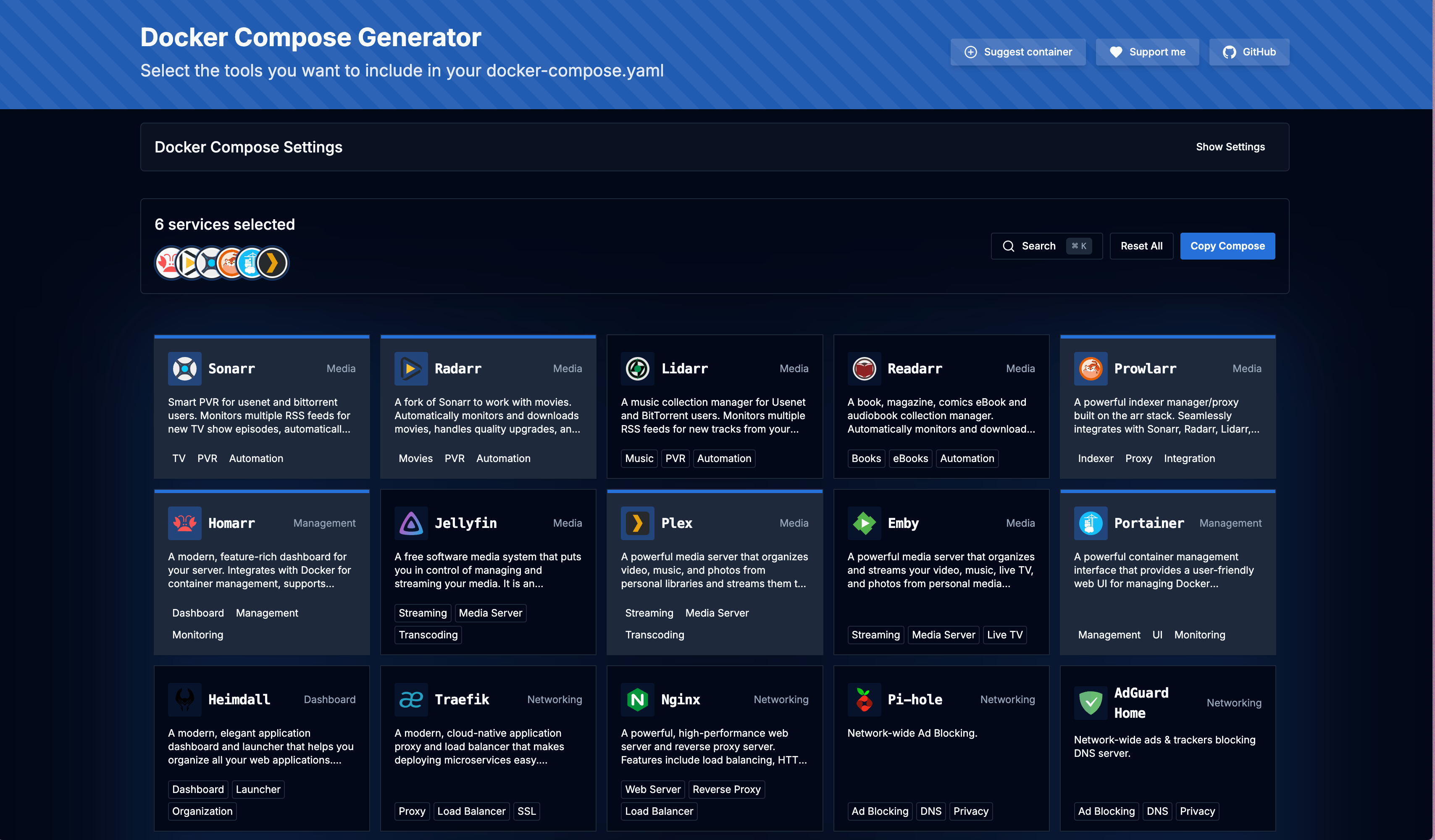
Using Docker Compose Maker is simple and intuitive:- Select containers - Browse the curated list of self-hosted applications and click to select the ones you want to include
- Use templates - Choose from predefined templates in the Template Gallery for common stacks like media servers
- Configure settings - Adjust environment variables, paths, and other common settings
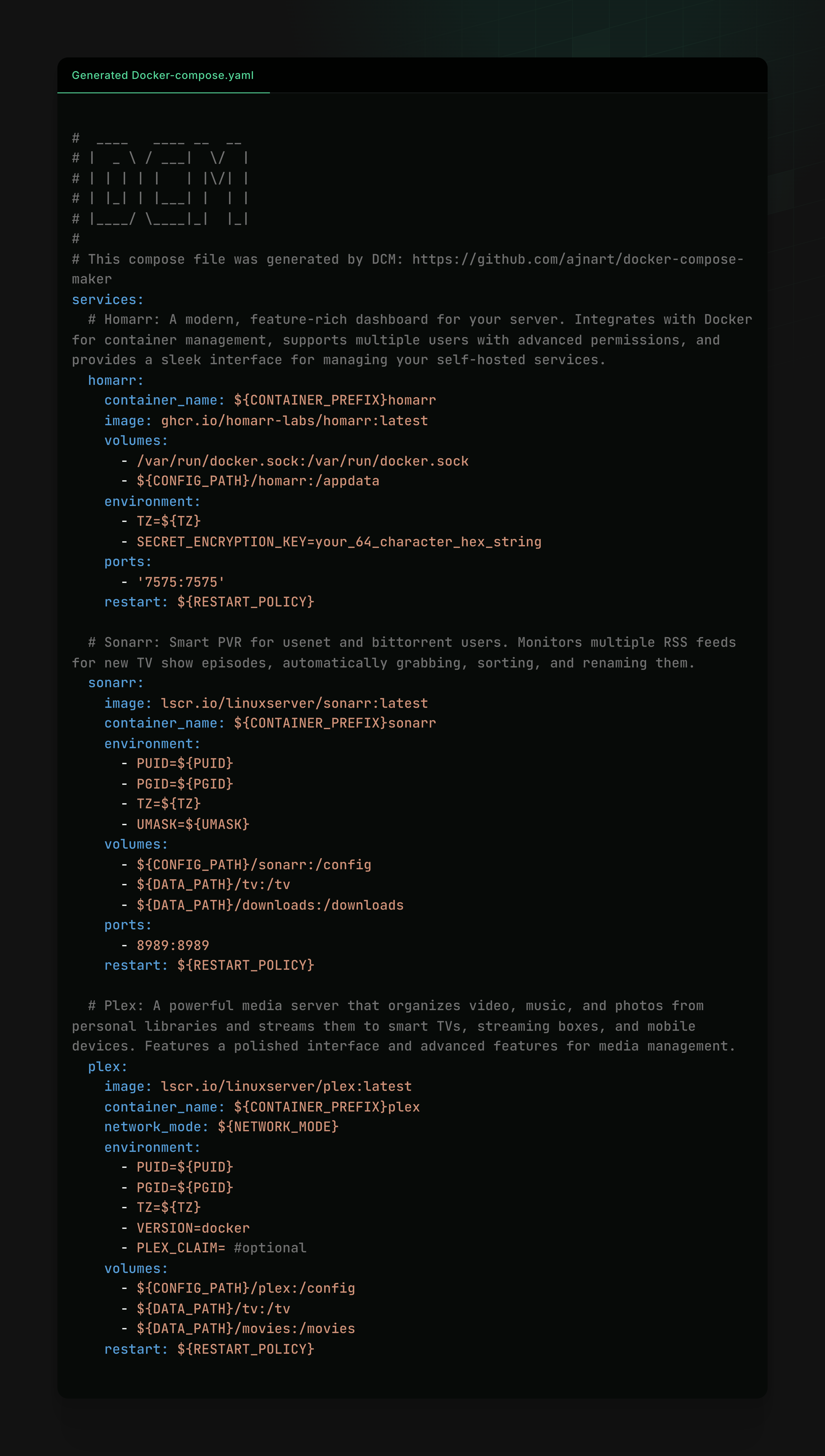
- Generate your configuration - Click "Copy Compose" to view and customize your docker-compose.yaml
- Deploy your stack - Use one of the following methods to deploy your containers:
!IMPORTANT All containers are configured to use environment variables like${PUID},${PGID}, and${TZ}. Make sure to set these in your deployment to avoid permission issues.
Deployment Options
Once you have your docker-compose configuration, you have several ways to deploy it:Copy & Paste
Simply copy the generated docker-compose.yaml and .env content, save them locally, and rundocker-compose up -d to start your containers.Download Files
Download the generated docker-compose.yaml and .env files directly from the interface, then use them with your preferred Docker management tool.!NOTE The downloaded .env file contains all the environment variables referenced in your docker-compose.yaml. Keep both files in the same directory when deploying.
Portainer Stacks
If you're already using Portainer to manage your Docker environment, you can easily deploy your configuration as a stack:- Navigate to your Portainer dashboard and select Stacks from the sidebar
- Click Add stack
- Give your stack a name
- Select Web editor and paste the generated docker-compose content
- (Optional) Add the environment variables from the .env file
- Click Deploy the stack
!CAUTION When using Portainer Stacks, you'll need to manually add the environment variables or upload the .env file, as Portainer doesn't automatically read the .env file in all configurations.
Using Portainer provides a user-friendly web interface to manage, update, and monitor your containers without needing command-line tools.
Other Docker Management Tools
The generated compose file works with any tool that supports docker-compose syntax, such as Docker Desktop, Rancher, Yacht, or command-line tools.🚀 Quick Start
If you want to try DCM for yourself, there are several ways to get started:🌐 Use the Online Version
Visit compose.ajnart.dev to use the tool immediately without installation.!NOTE The online version includes analytics for usage tracking, while the self-hosted version does not.
🐳 Run with Docker
Run with a single command:docker run -p 7576:7576 --name dcm --rm ghcr.io/ajnart/dcmThen visit
http://localhost:7576 in your browser.The Docker image is available for multiple platforms:
- linux/amd64
- linux/arm64
- linux/arm/v7
📦 Using Docker Compose
Create adocker-compose.yaml file:services:
dcm:
image: ghcr.io/ajnart/dcm
container_name: dcm
ports:
- "7576:7576"
restart: unless-stoppedThen run:
docker-compose up -d🚀 Using Easypanel
Easypanel is a self-hosted Docker deployment platform. It has a one-click Easypanel template for DCM, which runs the image above.
🛠️ Build from Source
- Clone the repository:
git clone https://github.com/ajnart/dcm.git
cd dcm- Install dependencies:
First install Bun if you haven't already, then run:
bun install!WARNING Using npm instead of Bun may result in longer installation times and potential compatibility issues. We strongly recommend using Bun for development.
- Build and start:
bun run build
bun start
🧰 Supported Tools
DCM includes configuration for many popular self-hosted applications, including:📺 Media Management: - Media Servers: Jellyfin, Plex, Emby - Media Automation: Sonarr, Radarr, Lidarr, Readarr, Prowlarr, Bazarr, Whisparr - Media Requests: Jellyseerr, Overseerr, Doplarr, Requestrr
🔍 Dashboards & Management: - Dashboards: Homarr, Heimdall - Container Management: Portainer - Media Analytics: Tautulli
📥 Download Management: - Torrent: qBittorrent - Usenet: NZBGet, NZBHydra 2 - Indexers: Jackett, Prowlarr
🗄️ Databases: - SQL: MariaDB, MySQL, PostgreSQL - NoSQL: MongoDB, Redis
📊 Monitoring & Automation: - Monitoring: Grafana, Prometheus - Updates: Watchtower - Home Automation: Home Assistant
🔐 Security: Vaultwarden
💾 Storage & Files: Nextcloud
Each tool includes a detailed description, GitHub star count, and pre-configured docker-compose settings.
🧪 Testing
DCM uses Bun for testing. To run the tests:# Run all tests
bun test
# Run Docker Compose validation tests
bun test:compose
# Run container schema validation tests
bun test:containers🤖 MCP v2 endpoints
The Cloudflare Pages deployment includes three independent, stateless MCP v2 Streamable HTTP endpoints:https://compose.ajnart.dev/api/mcp/v2/tools- discover tools and retrieve their Compose definitionshttps://compose.ajnart.dev/api/mcp/v2/templates- discover templates and their toolshttps://compose.ajnart.dev/api/mcp/v2/compose- generatedocker-compose.yamland.envcontent
Each endpoint is a separate MCP server. They do not keep sessions or rely on in-memory state, so they can run on any Cloudflare Pages Function instance. POST requests use JSON responses over the MCP Streamable HTTP transport. Because these endpoints are stateless,
GET and DELETE return 405; clients should
use POST for initialization and tool calls.The endpoints are public by default. Set the optional
MCP_ACCESS_TOKEN
Pages secret to require Authorization: Bearer <token>:wrangler pages secret put MCP_ACCESS_TOKENThe frontend remains a static Next.js export. The deploy script compiles the Pages Functions into
out/_worker.js before uploading out:bun run deployThe Docker image in this repository still serves only the static
out
directory, so it does not provide the MCP endpoints. GitHub Pages would have
the same limitation; the MCP runtime requires Cloudflare Pages Functions or a
separate Worker.🔄 Template Gallery
DCM includes a Template Gallery that allows you to quickly add predefined stacks of containers based on common use cases:- Media Server Stacks: Complete media server setups with Jellyfin/Plex and related tools
- Development Environments: Web development stacks with databases and web servers
- Monitoring Solutions: Grafana, Prometheus, and other monitoring tools
- Database Clusters: Various database engines with management tools
- Security Tools: Password managers and security-related containers
- And more!: Smart home hubs, personal cloud solutions, and other useful templates
To use the Template Gallery:
- Click the "Template Gallery" button at the top of the main page
- Browse or search for templates that match your needs
- Click "Use Template" to add all containers from that template to your selection
- Return to the main page to customize your selected containers
You can combine multiple templates to create your perfect self-hosted environment!
🖼️ Screenshots
User Interface
Generated docker compose file
🤝 Contributing
We welcome contributions to DCM! Whether you want to add new container definitions, improve documentation, or fix bugs, your help is appreciated.Please check our CONTRIBUTING.md guide for detailed instructions on:
- How to add new container definitions
- Code style guidelines
- Testing requirements
- Pull request process
The easiest way to contribute is by adding new container definitions to our growing collection!
📜 License
This project is licensed under the MIT License - see the LICENSE file for details.💖 Support
If you find this tool useful, consider supporting the project by:- ⭐ Starring the repository on GitHub
- 🐦 Sharing it on social media
- ☕ Buying me a coffee
📞 Contact
- GitHub: @ajnart
Made with ❤️ by ajnart
Serve Docker Compose maker on your own domain behind Caddy, Nginx or Traefik. Fill in your domain and copy the result. It's a starting point, some apps need their own base URL or extra headers set too.
Proxying docker-compose-maker.example.com to http://dcm:7576
Add this to your Caddyfile
docker-compose-maker.example.com {
	reverse_proxy http://dcm:7576
}Check the logs first
Nine times out of ten the logs tell you exactly what went wrong.
- In Portainer, go to Containers, click the container, then Logs. Or run
docker logs <container> - Exit codes help too:
137means killed, usually out of memory.126or127means the command inside the image is broken.
Port already in use
If deployment fails with "Bind for 0.0.0.0:7576 failed: port is already allocated", something else on your server is using that port.
- Find what's using it:
sudo ss -tlnp | grep :7576 - Stop the other service, or pick a different host port. In
7576:7576only the left number is yours to change, the right one belongs to the app.
Running but the page won't load
The container is up but nothing appears in your browser.
- Use your server's real IP:
http://your-server-ip:7576. The 0.0.0.0 link Portainer shows isn't a real address. - Give it a minute after first deploy, dcm can take a while to initialise.
- Make sure your firewall allows the port, e.g.
sudo ufw allow 7576
Image won't pull
Test the pull directly on the host: docker pull ghcr.io/ajnart/dcm
- "manifest unknown" means the tag no longer exists. This template uses
latest, so try pinning a specific version instead. - "toomanyrequests" is the Docker Hub rate limit. Log in with
docker loginto raise it. - "no space left on device" means a full disk. Reclaim space with
docker system prune
"exec format error"
This means the image was built for a different CPU architecture than your server.
- This image supports:
amd64, arm64, arm/v7 - Check yours with
uname -m: x86_64 is amd64, aarch64 is arm64. Raspberry Pi and other ARM boards are the usual culprits.
Container keeps restarting
The unless-stopped restart policy relaunches the app after every crash, so the real error can scroll past.
- Check the logs right after a restart, the last few lines before it died are the useful ones.
- Get the exit code with
docker inspect <container> --format '{{.State.ExitCode}}' - Still stuck? Redeploy once with the restart policy set to
noso the failure stays visible.
Stack won't deploy
Compose stacks fail fast on small mistakes, and Portainer shows the reason just above the editor.
- YAML only accepts spaces for indentation, a single tab breaks the whole file.
Raise an issue
Found something which isn't working as it should? Here's how to report it.
- Bug within the app: Open an issue on ajnart/dcm
- Template not working: Open an issue on xneo1/portainer_templates
- This website not working: Open an issue on lissy93/portainer-templates
A Compose stack
Docker Compose maker is a Compose stack, a set of containers defined in one file and brought up together by Portainer, then started and stopped as a single app.
The app image
An image is the app packed up ready to go, everything Docker Compose maker needs bundled into one download. This template pulls ghcr.io/ajnart/dcm, which Docker fetches once (about 62 MB) and then starts your own copy from.
Where the image comes from
Docker pulls its images from registries, public libraries of ready-built apps. Docker Compose maker's comes from the GitHub Container Registry, published by ajnart.
Version tags
The bit after the colon in the image name is the version tag. Here it's latest, which always points at the newest build, so a redeploy can bump you to a newer release without you asking. Pin a specific tag if you would rather stay on one version.
Which machines it runs on
Every image is built for particular CPU types. This one ships for amd64, arm64, arm/v7, so it runs on both regular x86 servers and ARM boards like a Raspberry Pi.
Ports
A port is the door the app answers on. A mapping like 7576:7576 means it's reachable on port 7576 of your server, where the left number is yours to change and the right one belongs to the app. It opens:
7576:7576
No stored data
This template doesn't mount any storage, so whatever Docker Compose maker writes stays inside the container and is wiped if it's recreated or updated. That's fine for something stateless, but add a volume before trusting it with anything you want to keep.
Restart policy
The restart policy here is unless-stopped, so Docker restarts Docker Compose maker after a crash or reboot, but leaves it off when you stop it on purpose. You can change this on the deploy screen. The choices are no (never restart), on-failure (only after a crash), unless-stopped (restart unless you stop it), and always (bring it back no matter what).
Networking
Nothing custom is set, so Docker Compose maker sits on Docker's default bridge network: its own private space that reaches the outside world only through the ports it publishes.
Container name
Once it's deployed, Portainer names the container dcm. That's what you'll spot in the containers list and use in commands like docker logs dcm.
Platform
The platform is linux, the kind of system the container is built to run on. Docker and Portainer handle this on a normal Linux server.
Open source license
Docker Compose maker is open source, released under the AGPL-3.0 license. In plain terms the code is out in the open, so you're free to run it and change it to fit what you need.
Portainer app templates
Zooming out, this whole page comes from a Portainer app template: a short recipe telling Portainer how to set Docker Compose maker up. Add the template list to Portainer once, then deploying Docker Compose maker is a click rather than a wall of config.